A few weekends ago I ran a 30-billion-parameter model on a laptop with no internet connection, and it answered my coding questions at reading speed. No API key. No per-token meter ticking. That setup would have been a research-lab flex two years ago. In 2026 it’s a default install.
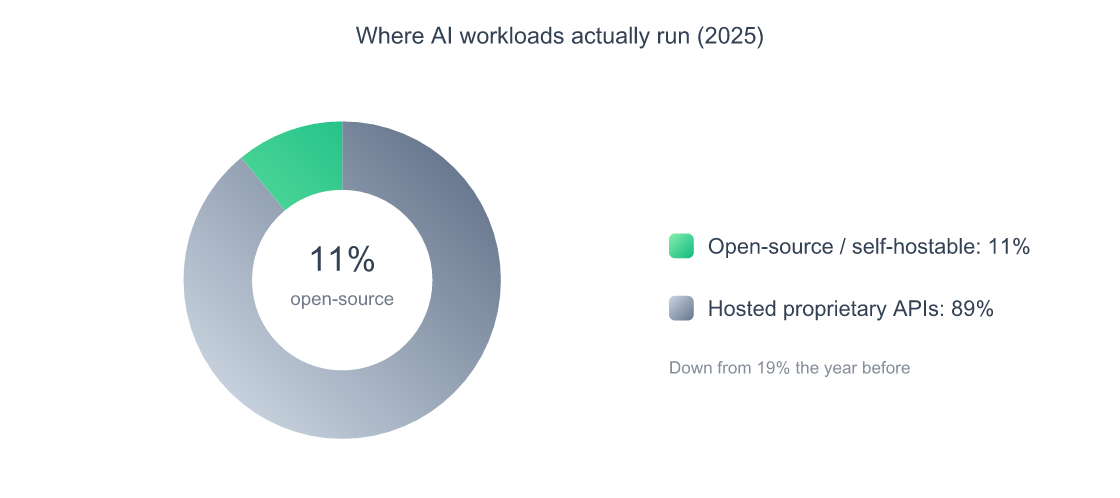
The tooling caught up fast. Ollama, the project most people start with, passed 174,000 GitHub stars and 16,700 forks by mid-2026 (GitHub, 2026), and the llama.cpp engine underneath much of this stack sits north of 73,000 stars of its own. But here’s the honest part most “run AI locally” posts skip: a local LLM is still a niche. Menlo Ventures found open-source models hold just 11% of enterprise LLM usage in 2025, down from 19% the year before (Menlo Ventures, 2025). Most production traffic still hits a hosted API.
So who should actually run one, and with what? I’ve put real hours into Ollama, LM Studio, llama.cpp, and vLLM across a Mac and a mid-range GPU box. This is the working map: the four runtimes that matter, a decision box that tells you which to pick, and the hardware reality check, with the model-versus-model fights pushed out to dedicated guides so this one stays a map and not a maze.
Key Takeaways
- Ollama leads on mindshare (174K+ GitHub stars, 2026), but it’s a wrapper around
llama.cpp, the engine doing the actual work (GitHub, 2026).- The “which runtime” question is really a concurrency question. For one user, Ollama, LM Studio, and llama.cpp are roughly tied; the moment you serve many users at once, vLLM pulls ahead by a wide margin.
- At 64 concurrent users, vLLM generated about 44x more tokens per second than llama.cpp in Red Hat’s benchmark, while llama.cpp’s first token took over three minutes (Red Hat Developer, 2026).
- Hardware is the real gate: a 70B model at Q4_K_M quantization wants roughly 40GB of memory, so a 24GB GPU or a 64GB-plus Mac is the practical entry point for the big models.
- Privacy and cost are the two honest reasons to go local. 44% of enterprises name data privacy as their top barrier to LLM adoption (Kong, 2025), and local inference has a marginal cost of zero per request.
What Is a Local LLM, and Why Run One in 2026?
A local LLM is a language model that runs entirely on your own machine, with no request leaving your hardware. That matters because privacy is the number one blocker to AI adoption: 44% of enterprises cite data privacy and security as their top barrier to using LLMs (Kong, 2025). When the model lives on your laptop, the prompt never travels.
The other reason is money. A hosted API charges per token forever. A local model charges you once, in hardware, and then runs at zero marginal cost per request. For a developer hammering a model all day, that math flips quickly. Privacy-focused builds keep sensitive code, contracts, or health data on-device, which is exactly why the “private llm” search trend keeps climbing.
There’s a third reason that’s quieter but real: control. You pick the exact model, the exact quantization, and the exact version. Nothing gets deprecated out from under you. Some people also run local models specifically to step outside hosted guardrails, a sub-audience covered in the guide to the best uncensored and roleplay local LLMs.
Now the anti-hype counterweight. Local does not mean free of tradeoffs. You give up frontier quality, you babysit your own hardware, and you eat the setup cost. Independent 2026 benchmarks put local inference on consumer hardware at roughly 70 to 85% of frontier-model quality on common tasks (Pooya Golchian, 2026). For a lot of work that’s plenty. For the hardest reasoning, it isn’t. Knowing which bucket your task lands in is the whole game.
What I actually saw: On an M-series Mac and a 12GB RTX 3060 box, the 7B and 8B models felt instant and genuinely useful for autocomplete, summarizing, and quick refactors. The 70B-class models technically loaded, but only on the Mac with enough unified memory, and they crawled. The gap between “runs” and “runs well” is almost entirely a hardware story, which is the section most guides bury.
The Four Local LLM Runtimes Worth Knowing
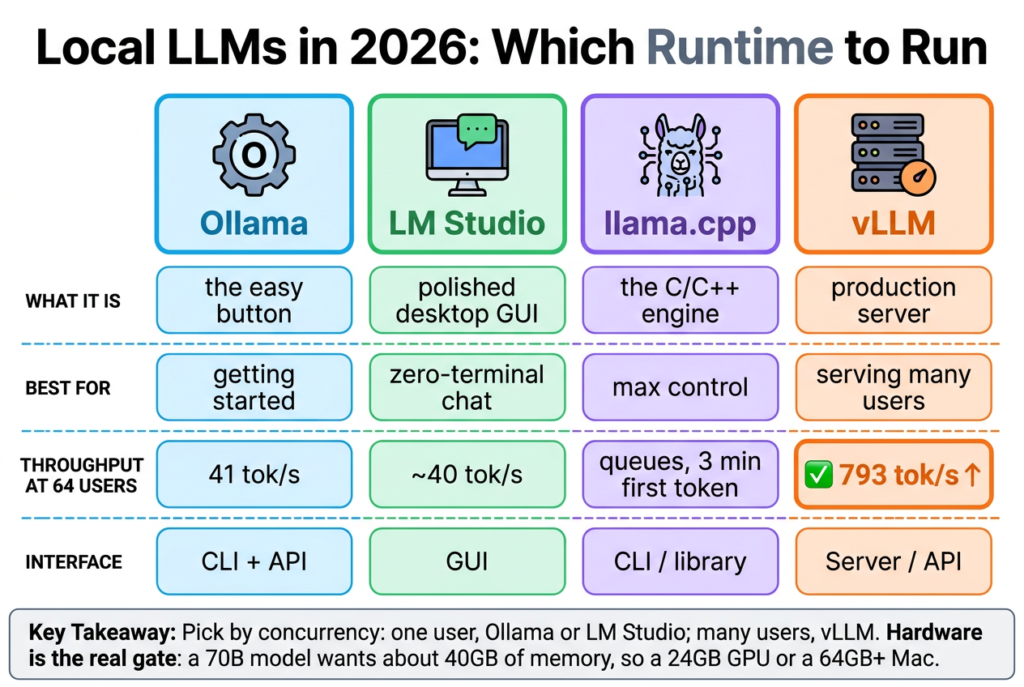
There are dozens of local-LLM tools, but four cover almost every real use case: Ollama, LM Studio, llama.cpp, and vLLM. Three of them (Ollama, LM Studio, and most desktop apps) are wrappers or GUIs sitting on top of llama.cpp, which crossed 73,000 GitHub stars as the de facto engine for consumer inference (GitHub, 2026). vLLM is the outlier, built for serving at scale.
Here’s the honest one-line verdict on each, with the deep setups linked out so this stays a map:
| Runtime | What it is | Best for | Interface |
|---|---|---|---|
| Ollama | The easy button. One command pulls and runs a model. | Getting started, scripting, local dev | CLI + API |
| LM Studio | A polished desktop GUI over the same engine. | Browsing, downloading, and chatting with zero terminal | GUI |
| llama.cpp | The C/C++ engine everything else is built on. | Max control, custom quantization, embedding in your own app | CLI / library |
| vLLM | A production inference server with continuous batching. | Serving many users, building a product, throughput | Server / API |
Ollama is where most people should start, and the full walkthrough lives in the complete Ollama guide covering setup, models, the web UI, and troubleshooting. If you’d rather click than type, the LM Studio guide on downloading models and how LM Studio compares to Ollama is the better entry point. The Ollama-versus-LM-Studio choice is mostly taste: same engine, different front door.
According to GitHub’s own counts, Ollama passed 174,000 stars and 16,700 forks by mid-2026 (GitHub, 2026), making it the most-starred local-LLM runtime by a wide margin. But star counts measure attention, not throughput. The engine underneath, llama.cpp, is what actually turns model weights into tokens, and choosing between the four runtimes is really about how many people you need to serve at once.
The reframe most comparisons miss: “Which runtime is best?” is the wrong question. They mostly run the same models at the same quality. The real question is “how many requests at once?” That single variable, concurrency, is what separates the easy desktop tools from vLLM, and it’s the axis the next chart is built on.
Ollama vs llama.cpp vs vLLM: Which Runtime Is Fastest?
It depends entirely on load, and that caveat is the answer. For a single user, Ollama, LM Studio, and llama.cpp are roughly tied, often within a few tokens per second of each other. For many concurrent users, vLLM is in a different league: at 64 simultaneous users it generated about 44 times more tokens per second than llama.cpp in Red Hat’s tests (Red Hat Developer, 2026).
Why the gap? Architecture. Tools like Ollama and llama.cpp process requests largely one at a time, which is perfect for a single developer at a keyboard. vLLM uses continuous batching and PagedAttention to interleave many requests across the GPU, so its throughput climbs as load climbs. The flip side: under heavy concurrency, llama.cpp’s first token can take more than three minutes because requests queue (Red Hat Developer, 2026). One benchmark clocked vLLM at a peak of 793 tokens per second against Ollama’s 41 under the same load, a roughly 19x gap (tech-insider, 2026).
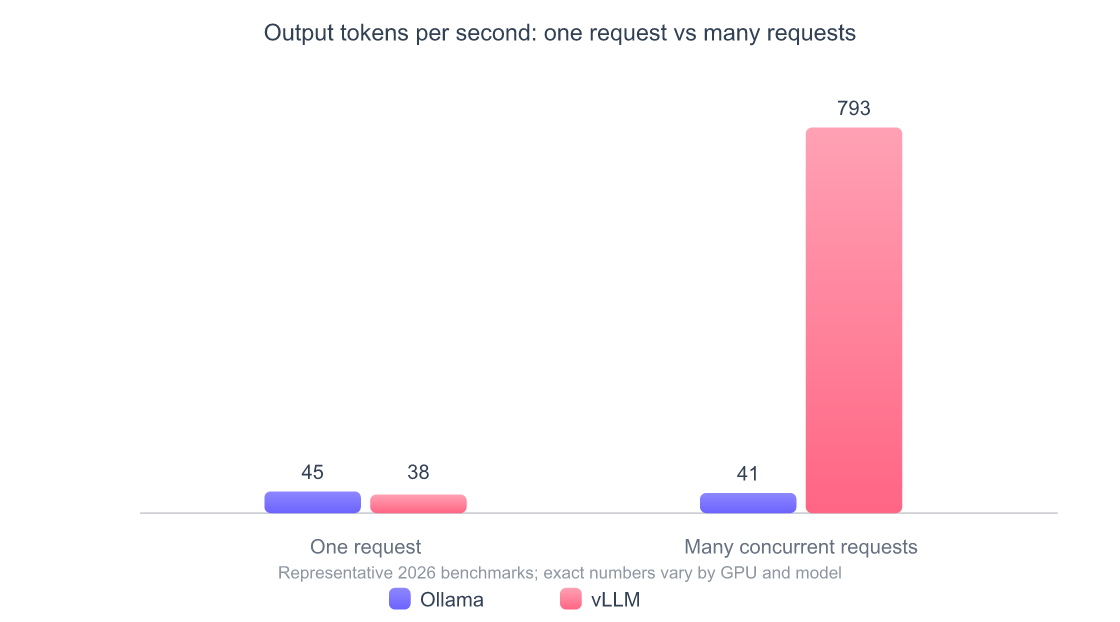
Source: Red Hat Developer and independent vLLM vs Ollama benchmarks, 2026
The practical takeaway is simple. Are you one person at a keyboard? Ollama or LM Studio, and the throughput numbers above barely matter. Are you putting a model behind an app for real users? That’s a vLLM job. The cross-runtime comparisons (llama.cpp vs Ollama, vLLM vs Ollama) live here in the pillar on purpose, while the tool-specific deep dives stay in their own guides so nothing cannibalizes.
For one user, the runtime you pick changes your tokens per second by single digits. For a hundred users, it changes them by an order of magnitude. vLLM’s continuous batching is the reason a production deployment serving concurrent traffic should not be running on the same tool a solo developer uses for autocomplete (Red Hat Developer, 2026).
Which Local LLM Tool Should You Use?
Pick based on one thing first: who’s calling the model. A solo developer wants the easiest path (Ollama or LM Studio); a team shipping a product wants throughput (vLLM); a tinkerer who needs custom quantization wants the raw engine (llama.cpp). Everything else is a detail. Here’s the decision box I actually use.
The which-tool-to-pick decision box
If you… Run Why Want a model running in two minutes Ollama One command pulls and serves a model, with a built-in API Prefer clicking to typing LM Studio A real GUI to browse, download, and chat, no terminal Need custom quantization or to embed inference in your own binary llama.cpp The engine itself, minimal dependencies, total control Are serving many users or building a product vLLM Continuous batching scales throughput with concurrency Are on an Apple Silicon Mac and want max speed Ollama or LM Studio Both ride Metal/MLX acceleration under the hood Want to wire a local model into your editor or agents Ollama Its OpenAI-compatible API drops into most tools
A point worth stressing: these aren’t exclusive. My own setup runs Ollama for day-to-day CLI work and keeps LM Studio around for visually browsing new models before I commit. They share the same model files and the same engine, so switching costs almost nothing. If you want a local model powering an editor like Cursor or driving an agent, Ollama’s OpenAI-compatible endpoint is the path of least resistance, and you can connect it to external tools through the Model Context Protocol, which standardizes how AI clients talk to tools and data.
One boundary to keep straight: this is about runtimes, not agents. If you’re comparing coding assistants (Cursor, Claude Code, Copilot) rather than the engines that run models, that’s a different decision covered in the comparison of AI coding agents across five categories. Runtimes run models. Agents wrap workflows around them.
What Hardware Do You Need to Run a Local LLM?
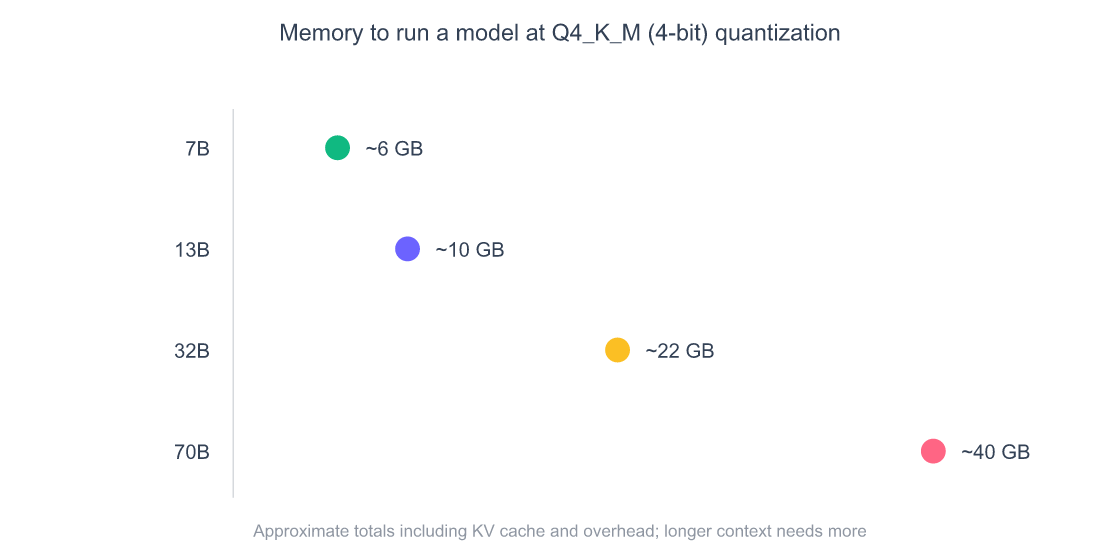
Memory is the gate, not raw compute. The rule of thumb: a model needs roughly its parameter count in gigabytes at 4-bit quantization, plus overhead. A 7B model at Q4_K_M wants about 5 to 6GB; a 70B model at the same quantization wants roughly 40GB once you account for the KV cache and runtime overhead (SitePoint, 2026). That number decides everything else.
Quantization is the lever that makes local LLMs practical at all. It shrinks the model’s weights from 16-bit floats down to 4-bit or 5-bit integers, cutting memory roughly in four. The community settled on Q4_K_M as the sweet spot: the quality hit is tiny for everyday use, a perplexity delta of only about +0.05, though coding and multi-step reasoning can drop 5 to 15% versus full precision (Will It Run AI, 2026). In practice, a well-quantized model is almost always worth it to fit a bigger, smarter model into the same memory.
Source: SitePoint, llmhardware.io, and Will It Run AI quantization guides, 2026
So what should you buy? On the PC side, a 16GB GPU is now the realistic minimum for serious work, and a 24GB card (an RTX 3090 or 4090) is the practical sweet spot because it just barely fits a 70B model at Q4_K_M (SitePoint, 2026). Below that, you’re living in 7B-to-13B territory, which is genuinely fine for autocomplete, summarizing, and most coding help. The best GPU for a local LLM is, bluntly, whichever one has the most VRAM you can afford.
A 70B model at Q4_K_M needs roughly 40GB of memory once you include the KV cache, which is why a single 24GB consumer GPU is the practical ceiling for the largest models and a 64GB-plus unified-memory Mac is the realistic alternative (SitePoint, 2026). Match your model’s memory footprint to your hardware first, and pick the model second. For which models actually fit and perform, the guide to the best open-source LLMs does the model-by-model breakdown.
Can You Run a Local LLM on a Mac?
Yes, and Apple Silicon is quietly one of the best local-LLM platforms you can buy, thanks to unified memory. On an M-series Mac, the CPU, GPU, and Neural Engine share one high-bandwidth memory pool, so the GPU reads model weights without copying them across a PCIe bus. The M4 Max moves data at about 546 GB/s, which is why it generates tokens faster than any other current Apple chip (SitePoint, 2026).
The catch is the same as everywhere: memory. A 70B model at Q4 is around 43GB, which technically fits a 64GB Mac, but macOS memory pressure spikes and the system starts swapping to SSD, which tanks your tokens per second. For a stable 70B workflow on a Mac in 2026, 128GB of unified memory is the realistic requirement (SitePoint, 2026). For 7B-to-32B models, a 32GB or 48GB Mac is comfortable.
One Mac-specific tip from my own testing: Apple’s MLX framework, which both Ollama and LM Studio can use under the hood, runs noticeably faster than generic llama.cpp builds because it’s written for Metal and unified memory directly, a meaningful speedup on the same hardware (SitePoint, 2026). If you’re on Apple Silicon, prefer an MLX-aware build, and you’ll get free speed.
On Apple Silicon, unified memory means the usable model size is gated by your total RAM, not a separate VRAM number, so a 128GB Mac Studio can hold models that would need multiple datacenter GPUs on a PC (SitePoint, 2026). That’s the single biggest reason Macs punch above their weight for local inference. The “mac llm” search trend exists for a reason: for many developers, the laptop they already own is the best local-LLM box in the house.
When You Should Not Run an LLM Locally
Be honest about this part, because the local-AI hype skips it. You should not run locally when you need frontier-level reasoning, when you need to serve real production traffic without owning a GPU fleet, or when the engineering time to maintain it costs more than the API bill. Open-source models sit at just 11% of enterprise LLM usage for a reason (Menlo Ventures, 2025): hosted frontier models still win on raw capability.
Source: Menlo Ventures, State of Generative AI in the Enterprise, 2025
The cleanest mental model is a hybrid one. Run small, frequent, privacy-sensitive work locally, and route the hard or high-stakes requests to a hosted frontier model. If you’re picking between those frontier options, the Claude Opus vs GPT-5 comparison covers the top hosted pair. And when local stops scaling and you need to fan out across multiple providers cleanly, an AI gateway handles routing, fallback, and the cross-cutting concerns you’d otherwise hand-roll.
Local LLMs win on privacy and cost; hosted models win on peak capability and zero-ops scaling. The honest 2026 answer for most teams is not “local versus cloud” but “local for the 80% that’s routine, cloud for the 20% that’s hard.” Treat it as a routing decision, not a religion.
Which Models Should You Run Locally?
Start with the model that fits your memory, then optimize for your task. A 7B-to-8B model handles autocomplete and summarizing on almost any modern machine; a 70B model is worth the hardware only if you need its reasoning. The open-source field moves monthly, with strong releases from the Llama, Qwen, DeepSeek, Gemma, and Mistral families all runnable through the runtimes above.
This pillar deliberately doesn’t run the model-versus-model fights, because those are full guides on their own. Here’s where to go:
- For coding specifically: the ranked guide to the best LLMs for coding covers which models actually write good code, local and hosted.
- For a general open-source pick: the best open-source LLMs breakdown ranks the current field by use case.
- For the DeepSeek question: the DeepSeek R1 vs V3 comparison settles which version to run.
- For uncensored or roleplay use: the best uncensored and roleplay local LLMs covers the models built without heavy guardrails.
- For app ideas: the directory of awesome LLM apps catalogs what people build on top of these models.
The Hugging Face ecosystem now hosts roughly 135,000 GGUF-format models built specifically for local inference, up from a few hundred three years ago (Pooya Golchian, 2026), so the constraint in 2026 is almost never finding a model. It’s matching the right one to your hardware and your task. Pick the runtime first, confirm your memory budget, then choose the biggest model that fits comfortably.
Frequently Asked Questions
Is Ollama or LM Studio better for running a local LLM?
They run the same models at the same quality, so it comes down to interface. Ollama is a command-line tool with a built-in API, ideal for scripting and dev work. LM Studio is a GUI for people who’d rather click than type. Ollama leads on adoption with 174,000+ GitHub stars in 2026 (GitHub, 2026).
What hardware do I need to run a local LLM?
Memory is the gate. A 7B model at 4-bit quantization needs about 5 to 6GB, while a 70B model needs roughly 40GB (SitePoint, 2026). A 16GB GPU is the realistic minimum for serious work; a 24GB card or a 64GB-plus unified-memory Mac handles the largest models.
Is a local LLM as good as ChatGPT or Claude?
Not at the frontier, but closer than you’d think. Independent 2026 benchmarks put local inference at roughly 70 to 85% of frontier-model quality on common tasks (Pooya Golchian, 2026). For autocomplete, summarizing, and routine coding that’s plenty; for the hardest reasoning, hosted models still lead.
Why run an LLM locally instead of using an API?
Privacy and cost. 44% of enterprises name data privacy as their top barrier to LLM adoption, which a local model removes entirely since no request leaves your machine (Kong, 2025). Local inference also has zero marginal cost per request, which adds up fast for heavy daily use.
Which runtime is fastest for serving many users?
vLLM, by a wide margin. Its continuous batching scales throughput with concurrency, generating about 44 times more tokens per second than llama.cpp at 64 concurrent users (Red Hat Developer, 2026). For a single user, though, Ollama and llama.cpp are roughly tied with it.
The Bottom Line on Running LLMs Locally
Running a local LLM in 2026 is no longer a research project; it’s a two-minute install with Ollama and a hardware decision. The runtime you pick matters less than people think for solo use, and a lot more once you’re serving real traffic. Get the order right: pick the runtime for your concurrency, size your hardware to the model, then choose the biggest model that fits.
- Solo developer? Ollama or LM Studio, a 16GB-plus GPU or a 32GB-plus Mac, and a 7B-to-32B model.
- Shipping a product? vLLM, datacenter GPUs, and a real serving setup.
- Privacy-driven? Anything local beats a hosted API the moment your data can’t leave the building.
If you’re ready to actually install one, the next step is the full Ollama setup and model guide, the fastest path from zero to a model running on your own machine. Then come back and match a model to the hardware you’ve got.