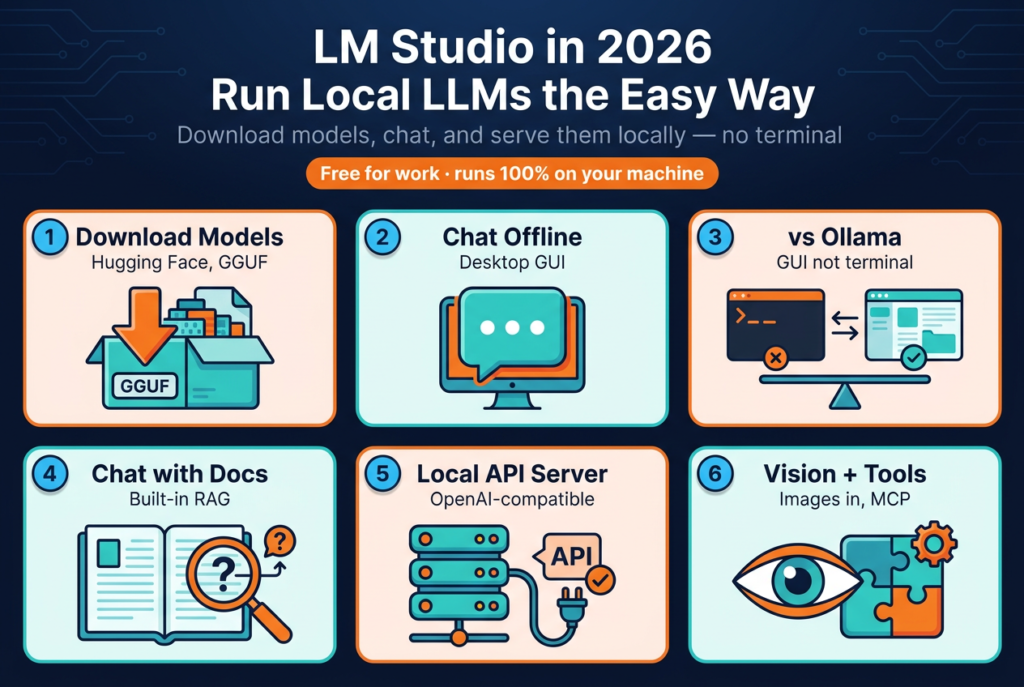
I keep two local-LLM tools installed, and the one I reach for when I just want to try a new model is LM Studio. Not because it’s faster than Ollama (it isn’t, really), but because it turns “find a model, download it, and start chatting” into a few clicks instead of a few terminal commands. You open the app, search a built-in catalog wired to Hugging Face, pick a file, and a progress bar fills. That’s the whole onboarding.
That low friction is paying off. LM Studio crossed millions of downloads worldwide, and in July 2025 the company dropped its biggest barrier: the app became free for work, not just personal use, so teams no longer need a commercial license to run it (LM Studio, 2025). For a tool that started as a hobbyist desktop app in May 2023, that’s a real shift toward being the default way non-terminal people run models locally.
So this is the working guide I wish I’d had: how to actually download models, what LM Studio can and can’t do (it can’t generate images, and I’ll explain why that keyword is misleading), and the question everyone arrives with, whether to pick it over Ollama. I’ve run both across a Mac and a Windows GPU box, so the comparison here is from use, not spec sheets.
Key Takeaways
- LM Studio is a free desktop app for running local LLMs, and as of July 8, 2025 it’s free for work too, not only personal use (LM Studio, 2025).
- Downloading models is its core flow: search the in-app catalog (it pulls from Hugging Face), pick a GGUF or MLX quantization, click download. No terminal, no config file.
- LM Studio vs Ollama is a front-end choice, not a speed choice. Both run on the
llama.cppengine, so raw tokens per second are nearly identical; LM Studio is the GUI, Ollama is the CLI.- It cannot generate images. Its vision models read images you upload; for Stable Diffusion-style generation you need a separate tool. That keyword is a common misconception.
- It runs models locally, so your prompts and documents are processed on your machine and not sent to a provider, which is the privacy case for using it. The honest catch: the app is closed-source and collects opt-out telemetry.
What Is LM Studio, and Is It Actually Free?
LM Studio is a desktop application for downloading and running large language models entirely on your own computer, and yes, it’s genuinely free. Since July 8, 2025 it’s free for both personal and commercial use at work, with no form to fill out and no separate license to request (LM Studio, 2025). Before that date, company use technically required a commercial license, which quietly blocked a lot of team adoption.
Think of it as a local version of the ChatGPT window. The app gives you a chat interface, a model browser, and a one-click local server, all wrapped around the same inference engines the command-line tools use. The “lm studio ai” people search for isn’t a separate product; it’s just LM Studio running an open model like Llama, Qwen, Gemma, or DeepSeek on your hardware instead of a vendor’s cloud.
It’s built by Yagil Burowski’s team at Element Labs, a small Brooklyn company that has raised about $19 million in total funding (StartupHub, 2026). That funding answers the question lurking behind “how does LM Studio make money”: the app stays free, and revenue comes from a paid Enterprise plan (SSO, model and MCP gating, private collaboration) plus a self-serve Teams tier, both announced alongside the free-for-work change (LM Studio, 2025).
LM Studio shipped its free-for-work change in July 2025 after the founder admitted the commercial-license requirement had made adoption at work “a high friction thing to do,” following millions of downloads and dozens of enterprise deployments (LM Studio, 2025). The monetization bet is teams and governance, not the individual developer, which is why the core app has no paywall.
The reframe: LM Studio isn’t competing with ChatGPT on intelligence. It’s competing with the terminal on friction. The free-for-work move makes sense only through that lens, get it onto every developer laptop, then sell the admin controls a company needs once a team is already hooked.
How Do You Download Models in LM Studio?
Downloading a model in LM Studio takes three steps and no terminal: open the search tab, type a model name, and click download on a quantization that fits your RAM. The in-app catalog is wired to Hugging Face, and new releases show up in downloadable GGUF format on the same day they drop, so you’re rarely waiting on the tool to catch up to a model launch.
The part that trips people up is picking the right file, not finding the model. Each model lists several quantizations, which are compressed versions that trade a little quality for a lot less memory. The community standard is Q4_K_M, a 4-bit quant that’s the sweet spot for most machines. On Apple Silicon you’ll also see MLX versions, Apple’s own format, which LM Studio has shipped a native engine for since version 0.3.4 and which runs noticeably faster than generic builds (LM Studio, 2024).
Which model should you actually download first? Match the size to your memory, then worry about quality. Here’s the rule of thumb I use at Q4_K_M:
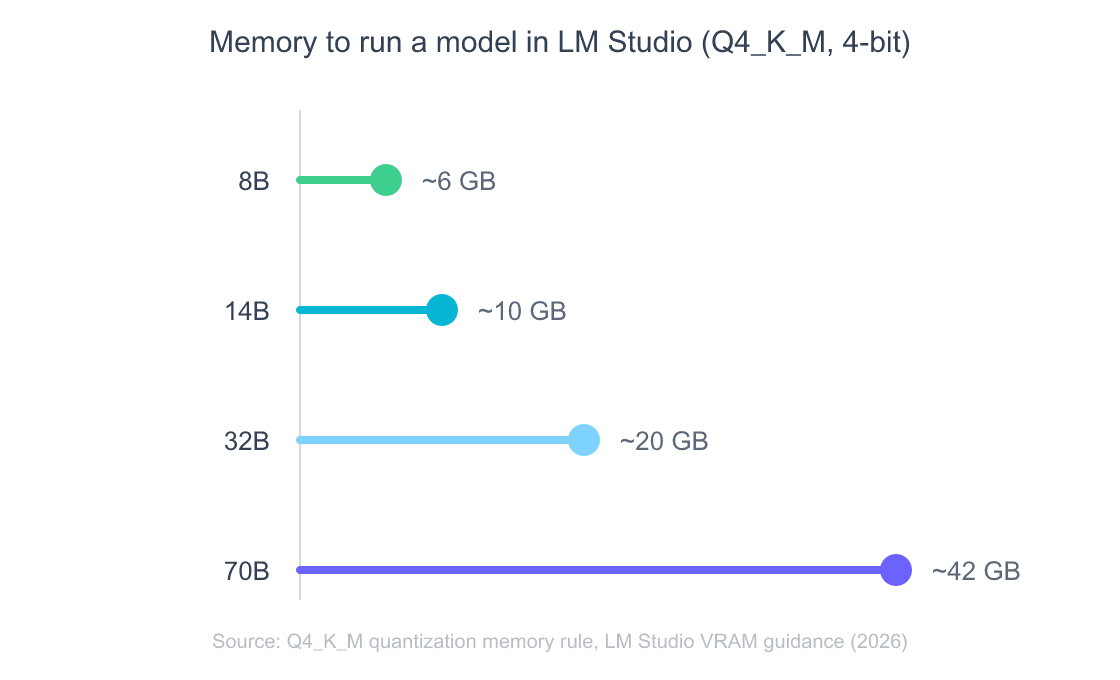
The best LM Studio models in 2026 are the same ones topping the open leaderboards, just sized to your machine. On 16GB of RAM, an 8B model (Llama 3.1, Qwen3 8B) is instant and useful. With 24GB or more you can run a 14B to 32B model comfortably, and a 64GB-plus Mac handles 70B. DeepSeek is a popular pick here, but a clarification that saves frustration: you can run the DeepSeek R1 distills (1.5B to 70B) in LM Studio, not the full 671B R1, which needs datacenter hardware. NVIDIA’s own LM Studio benchmark used the DeepSeek-R1-Distill-Llama-8B model precisely because that’s the realistic local target (NVIDIA, 2025).
One habit worth forming: download the quant one notch smaller than you think fits. When a model overflows your VRAM and spills into system RAM, generation can slow dramatically, and a model that “loads” at the edge of your memory is not a model that’s pleasant to use. I’d rather run a snappy 4-bit 14B than a stuttering 8-bit 14B that swaps.
LM Studio vs Ollama: Which Local LLM Tool Should You Use?
Pick LM Studio if you want a graphical app and Ollama if you want a command-line tool, because on raw performance they’re nearly tied. Both run on the same llama.cpp inference engine, which means token generation speed is architecturally identical; the deciding factor is how you like to work, not how fast the model talks (NVIDIA, 2025). This is the comparison everyone wants, so let me be blunt about where each one wins.
LM Studio wins on approachability. It has a real model browser, a chat window that remembers your conversations, sliders for GPU offload and context length, and saved presets, all without touching a config file. Ollama wins on automation and footprint. It’s a lightweight daemon with a clean CLI and an OpenAI-compatible API, its memory overhead is smaller because there’s no GUI to render, and it slots into scripts, Docker, and servers far more naturally. Here’s how I score them from hands-on use:
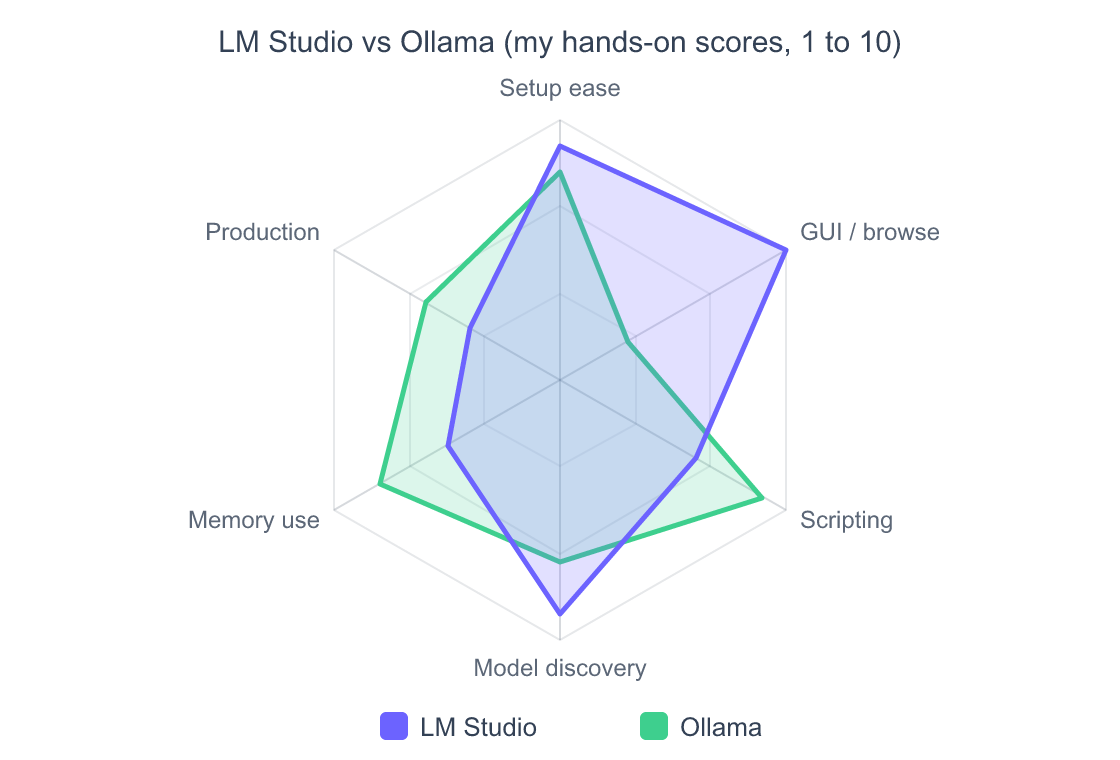
My honest verdict: use both. I download and audition new models in LM Studio because the browser and the chat UI make exploration fast, and I run anything scripted or always-on through Ollama. They read the same GGUF files, so there’s almost no switching cost. If you only want one, answer a single question, do you live in the terminal? Yes means Ollama; no means LM Studio. For the full Ollama walkthrough, see the complete Ollama guide covering setup, models, the web UI, and troubleshooting, and for the wider runtime landscape including llama.cpp and vLLM, the pillar on which local LLM runtime to run and the hardware you need maps all four.
LM Studio and Ollama share the llama.cpp engine, so the choice between them is interface, not inference: LM Studio is the polished desktop GUI with a built-in model browser, while Ollama is the lightweight CLI daemon with smaller memory overhead that drops into scripts and Docker (NVIDIA, 2025). One more boundary worth naming: Open WebUI, which people compare against LM Studio, isn’t really a competitor. It’s a separate web front-end that usually sits on top of Ollama, so “Open WebUI vs LM Studio” is really “self-hosted web UI vs all-in-one desktop app.”
What Hardware Do You Need, and Can You Run LM Studio on CPU Instead of GPU?
Yes, LM Studio runs on CPU alone, and no, you don’t strictly need a GPU, but a GPU makes it dramatically faster. The official requirements are modest: macOS 14 or newer on Apple Silicon, or Windows and Linux on x64 with AVX2 support, plus at least 16GB of RAM recommended and 4GB or more of VRAM if you have a discrete GPU (LM Studio, 2026). On a CPU-only machine the smaller models still work; they’re just slower, token by token.
There’s one gotcha that catches Mac users: current LM Studio is Apple Silicon only. If you’re searching “LM Studio for Intel Mac,” the honest answer is that the latest builds require an M-series chip, and Intel Mac owners need an older release or a different tool entirely (LM Studio, 2026). It’s an easy thing to lose an evening to before you read the fine print.
When you do have a GPU, the speed gains compound. NVIDIA contributed optimizations to the llama.cpp backend that LM Studio rides directly, and they add up to roughly a 27% speedup on a GeForce RTX 5080 versus earlier versions (NVIDIA, 2025):
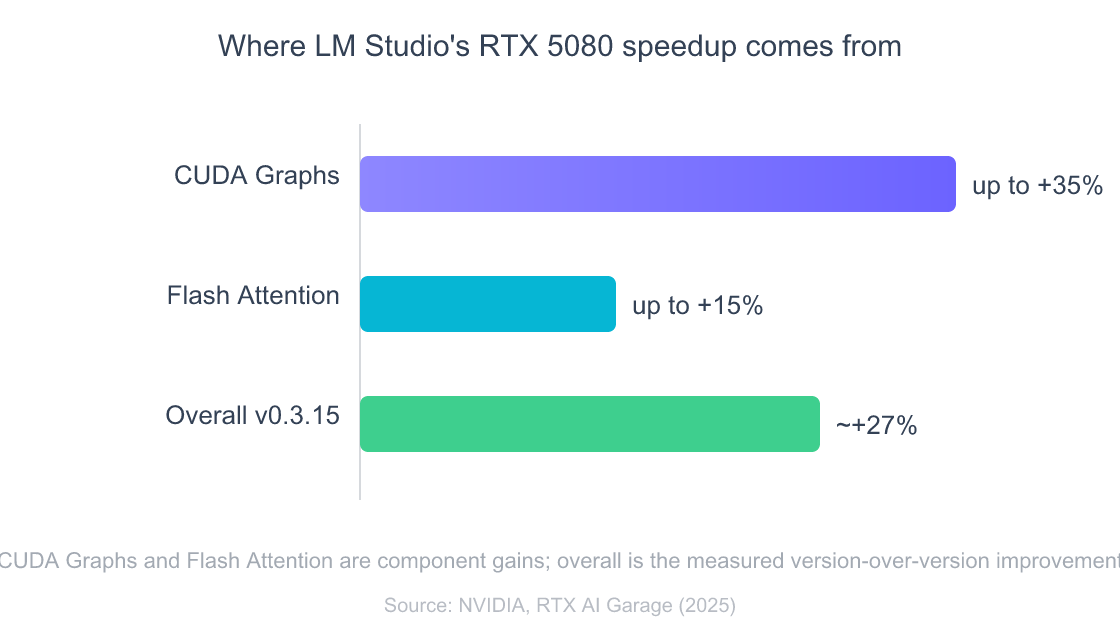
If you want to chase those numbers, two LM Studio toggles matter most: drag the GPU Offload slider to push every model layer onto the GPU, and turn on Flash Attention. On Apple Silicon, prefer the MLX version of a model where one exists; Apple’s MLX engine typically delivers 20 to 40% higher token throughput than the generic llama.cpp build on the same Mac (Contra Collective, 2026). LM Studio also supports speculative decoding, where a small draft model proposes tokens a larger model verifies, as another way to claw back speed on capable hardware. For a deeper hardware breakdown across runtimes, the pillar covers VRAM math and Mac-versus-PC tradeoffs in detail.
Can LM Studio Generate Images? (The Honest Answer)
No, LM Studio cannot generate images, and this is the single most misunderstood thing about it. The app runs language models and vision-language models, which means it can read and describe an image you upload, but it has no built-in diffusion pipeline to create one (LM Studio, 2025). The popular search “how to use LM Studio to render images” is chasing a feature that doesn’t exist in the way people expect.
Here’s the distinction that clears it up. A vision model like Gemma 3 or Qwen2.5-VL takes an image as input and outputs text: it can answer “what’s in this screenshot” or “transcribe this receipt.” That’s image understanding, and LM Studio does it well through its multimodal engine. Image generation is the opposite direction, text in, a brand-new picture out, and that’s the job of Stable Diffusion or similar diffusion models, which LM Studio simply doesn’t host.
So if you genuinely want to make pictures locally, don’t fight LM Studio for it. Run a dedicated tool like ComfyUI, AUTOMATIC1111, or Draw Things for Stable Diffusion, and keep LM Studio for text and image analysis. You can even pair them, letting an LM Studio model write or refine the text prompt that your image tool then renders. But the “stable diffusion on LM Studio” path most blogs imply isn’t a native button; it’s two separate tools doing two separate jobs.
LM Studio supports multimodal vision models that accept image input and return text descriptions, but it has no native image-generation capability, so creating pictures still requires a separate Stable Diffusion tool (LM Studio, 2025). Knowing this before you download a 10GB model expecting DALL-E saves a lot of confusion.
What Can LM Studio Do Beyond Chat? RAG, Web Search, and a Local Server
Beyond chatting, LM Studio does three things that make it genuinely useful for building, not just tinkering: it chats with your documents, it exposes an OpenAI-compatible API, and it can serve models to other machines. The document feature is real retrieval-augmented generation (RAG): attach a PDF, DOCX, or text file, and when the file is long, LM Studio retrieves the relevant chunks instead of stuffing the whole thing into context (LM Studio, 2024). It’s not a production vector database, but for “ask questions about this contract” it works offline and out of the box.
The API server is where LM Studio quietly becomes infrastructure. Flip on the local server and it speaks the OpenAI format at http://localhost:1234/v1, so any tool or SDK built for OpenAI works by changing one base URL, and it requires no API key (clients that demand one can pass any dummy string) (LM Studio, 2026). That’s how the “LM Studio connect to remote server” use case works too: run the server (including headless mode) on a beefy desktop, bind it to your network, and point a laptop at it over the LAN (LM Studio, 2026).
That OpenAI compatibility is what lets LM Studio drive coding agents. Cline, the VS Code agent, connects straight to LM Studio’s local server: select LM Studio as the provider, keep the default base URL, pick a local coding model, and enable the compact-prompt option that trims the system prompt for local models (Cline, 2026). It’s a fully local “vibe coding” loop with no token bill, though you should expect a capable but not frontier-level result from a small local model.
Two more features people ask about. Web search isn’t a built-in toggle, but since LM Studio became a Model Context Protocol host in version 0.3.17 (July 2025), you can add a web-search MCP server and let the model call it, with a confirmation dialog before any tool runs (InfoQ, 2025). MCP is also how you wire LM Studio into external tools and data generally; if you want to go deep on that, start with the complete guide to Model Context Protocol servers and the guide to configuring MCP, which applies to any MCP host. And presets let you save a system prompt plus parameters per use case, so your “coding” and “writing” setups are one click apart.
Is LM Studio Safe and Private, and What Are the Alternatives?
LM Studio is safe to use in the way that matters most for privacy: model inference runs entirely on your machine, so your prompts and documents are processed locally and aren’t sent to a model provider for training or logging (LM Studio, 2026). That local-only inference, with the API served from localhost rather than a cloud endpoint, is the whole reason privacy-minded developers and regulated teams reach for it.
There are two honest caveats. First, the LM Studio desktop app is closed-source, so you’re trusting the developer’s word and the network behavior you can observe, not an auditable codebase (the CLI and SDKs are open under MIT, but the app itself isn’t). Second, the app collects usage analytics by default, which you can opt out of, so it isn’t strictly zero-telemetry the way a fully air-gapped tool is (Kunal Ganglani, 2026). For most people that’s a fine trade; for an air-gapped or compliance-critical environment, those two points are the cleanest reason to consider an alternative.
The main alternative is Jan, which is fully open-source and built to run air-gapped, making it the natural pick when you need to inspect or self-host the code (Kunal Ganglani, 2026). The “LM Studio vs Jan AI” choice usually comes down to polish versus openness: LM Studio has the smoother model browser and broader feature set today, while Jan trades some polish for code you can fork and keep forever. Ollama remains the third option for people who’d rather have a CLI. If your reason for going local is to escape model guardrails specifically, that’s a different rabbit hole covered in the guide to the best uncensored and roleplay local LLMs, and if you’re choosing a model for writing code, the ranked guide to the best LLMs for coding does the model-by-model breakdown.
Frequently Asked Questions
Is LM Studio free?
Yes. LM Studio has always been free for personal use, and since July 8, 2025 it’s also free for commercial use at work, with no license to request (LM Studio, 2025). The company makes money instead from paid Enterprise and Teams plans that add SSO, access controls, and private collaboration, not from the core app.
Is LM Studio safe to use?
For privacy, yes: model inference runs locally, so your prompts and files are processed on your machine, not sent to a provider (LM Studio, 2026). Two caveats: the desktop app is closed-source, and it collects opt-out usage analytics. If either is a dealbreaker, the open-source alternative Jan exists for exactly that reason.
Can LM Studio run on CPU instead of a GPU?
Yes. LM Studio can run models on CPU alone, with at least 16GB of RAM recommended and AVX2 support required on Windows (LM Studio, 2026). Performance is slower than on a GPU, so stick to smaller 7B-to-8B models if you’re CPU-only, and add a GPU later for bigger ones.
Does LM Studio work on Intel Macs?
No. The current LM Studio requires Apple Silicon (an M-series chip) on macOS 14 or newer, and Intel Macs are not supported (LM Studio, 2026). Intel Mac owners need an older LM Studio build or a different local-LLM tool. On Windows and Linux, the requirement is an x64 CPU with AVX2 instead.
Is LM Studio or Ollama better?
Neither is faster; they share the llama.cpp engine, so it’s a front-end choice (NVIDIA, 2025). Pick LM Studio for a graphical app with a model browser and chat UI, and Ollama for a command-line tool with a smaller footprint that fits scripts, servers, and Docker.
The Bottom Line on LM Studio in 2026
LM Studio is the easiest on-ramp to local LLMs in 2026, and the July 2025 free-for-work change removed the last reason for teams not to try it. Its job is to make “download a model and use it” a three-click affair, and at that it’s the best tool I’ve used. Just go in knowing the boundaries: it shares Ollama’s engine so it isn’t faster, it reads images but can’t generate them, and the app is closed-source.
- Want the easiest start? Download LM Studio, grab an 8B model at
Q4_K_M, and you’re chatting offline in minutes. - Comparing it to Ollama? Same speed, different front door. GUI versus CLI is the whole decision.
- Building something? Use the OpenAI-compatible server, add MCP tools, and point Cline or your own scripts at
localhost:1234.
Once you’ve outgrown the desktop app and want to understand the full landscape of runtimes and hardware, the guide to running LLMs locally is the next stop, and it’ll tell you when to graduate from LM Studio to something built for serving real traffic.