I ran nvm use 18 for an old project, switched terminals, typed claude, and got command not found. Ten minutes later I was reading a Stack Overflow thread about the “Claude Code requires Node.js version 18 or higher” error, convinced I’d broken my Node setup. I hadn’t. I’d just installed Claude Code the old way, back when it actually cared what Node version was on my PATH.
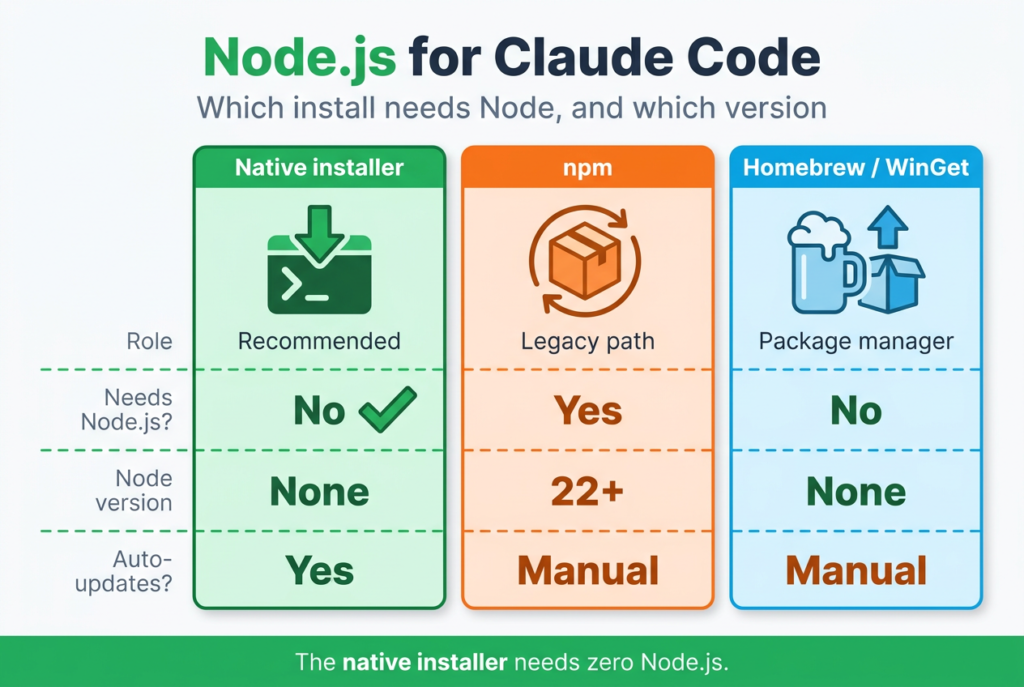
Here’s the thing almost every setup guide still gets wrong: the Node.js question is mostly historical. The install method Anthropic now recommends downloads a native binary that never touches your Node at all. So before you go installing a specific Node version, or blaming nvm, it’s worth knowing what actually needs Node, which version, and when you can stop caring entirely.
Key Takeaways
- Claude Code’s recommended install (the native installer) needs zero Node.js. It ships a native binary that doesn’t invoke Node at runtime (Claude Code docs, 2026).
- Only the npm install path needs Node, and as of v2.1.198 it wants Node 22 or later (Claude Code docs, 2026).
- Even on the npm path, Node is used at install time only. The installed
claudebinary is native and never calls your Node.- The classic
requires Node.js version 18 or highererror and most nvm conflicts are npm / VS Code extension problems. The cleanest fix is switching to the native installer.- You’ll still want Node 22 LTS around for npx-based MCP servers and your own JavaScript projects.
Does Claude Code need Node.js?
No. Not for the install method Anthropic recommends. The native installer (curl -fsSL https://claude.ai/install.sh | bash on macOS and Linux, or irm https://claude.ai/install.ps1 | iex in PowerShell) downloads a native binary and, in Anthropic’s own words, that binary “does not itself invoke Node” (Claude Code docs, 2026). No Node, no version to match, no PATH to keep in sync.
That surprises people, because for a long time Claude Code shipped only as an npm package, and npm packages need Node. The runtime moved on. Today the npm package is one install path among several (native, Homebrew, WinGet, apt, dnf, apk), and it’s the only one that touches Node. Here’s the part that trips everyone up: even the npm package installs the same native binary as the standalone installer. It pulls the binary in through a per-platform optional dependency like @anthropic-ai/claude-code-darwin-arm64, links it into place, and then Node’s job is done. Your Node version matters while npm runs the install. It does not matter when claude runs.
So the honest answer to “does Claude Code need Node” is: the app doesn’t, one of its install paths does, and only for a few seconds during setup.
What Node.js version does Claude Code need?
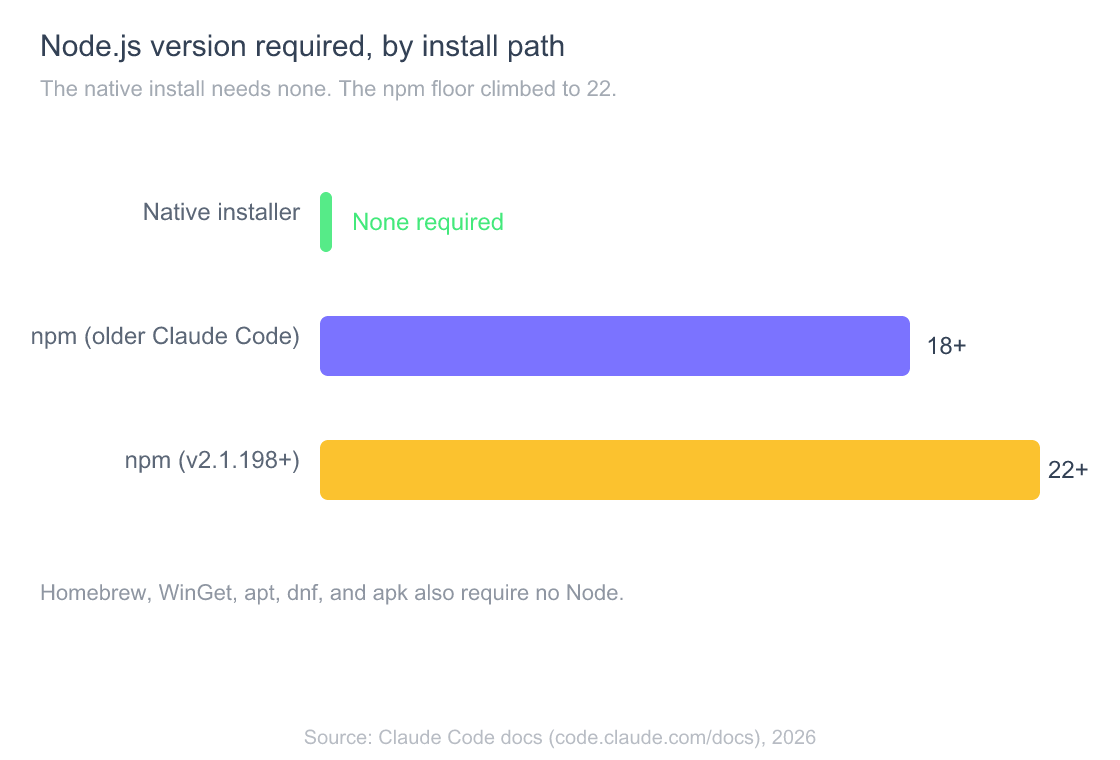
If you install through npm, you need Node.js 22 or later. That became the requirement in Claude Code v2.1.198 (Claude Code docs, 2026). Before that release the floor was Node 18, which is why you still see the “requires Node.js version 18 or higher” message quoted all over old forum threads.
There’s a nice bit of grace built in. If you run npm install -g @anthropic-ai/claude-code on an older Node version, npm prints an EBADENGINE warning but doesn’t fail. The install completes and claude still runs, because the package downloads that native binary and the binary doesn’t use your Node. So the version requirement is really a warning about the install step, not a hard wall you smash into.
Every other install path skips the question. The native installer, Homebrew, WinGet, and the Linux package managers (apt, dnf, apk) all pull the same signed native binary with no Node involved. For reference, the actual system requirements are macOS 13.0+, Windows 10 1809+, Ubuntu 20.04+, Debian 10+, or Alpine 3.19+, with 4 GB of RAM and an x64 or ARM64 processor (Claude Code docs, 2026). Node isn’t on that list.
My recommendation: if you have any other reason to want Node (and most developers do), install Node 22 LTS. It clears the npm requirement and it’s the current long-term-support line, so you’re not chasing a moving target. But install it for your work, not for Claude Code.
How to check what you actually have
Before you touch a single version, find out how Claude Code is installed and which Node your shell sees. Ninety percent of the confusion I run into is someone fixing the wrong thing because they never checked. Four commands settle it.
Start with the built-in diagnostic:
claude --version   # confirms claude is on your PATH at all
claude doctor      # full report: install type, update status, PATH issues
claude doctor is the fastest way to learn whether you’re on a native or npm install, and it flags PATH and update problems in plain language. Then check for duplicate installs, which cause more “it worked yesterday” mysteries than anything else:
which -a claude    # macOS / Linux: lists every claude on your PATH
where.exe claude   # Windows PowerShell
If more than one path comes back, you have competing installs fighting over which claude runs. A native install shows up as ~/.local/bin/claude symlinked into ~/.local/share/claude/versions/; an npm global shows in npm -g ls @anthropic-ai/claude-code (Claude Code docs, 2026). Keep one, remove the rest. Finally, separate the two questions people constantly merge:
node --version # what Node your shell sees (relevant only for npm installs and MCP)
If claude doctor says you’re on a native install, that node --version output has nothing to do with whether Claude Code runs. That single realization saves most of the debugging.
When you still want Node.js around
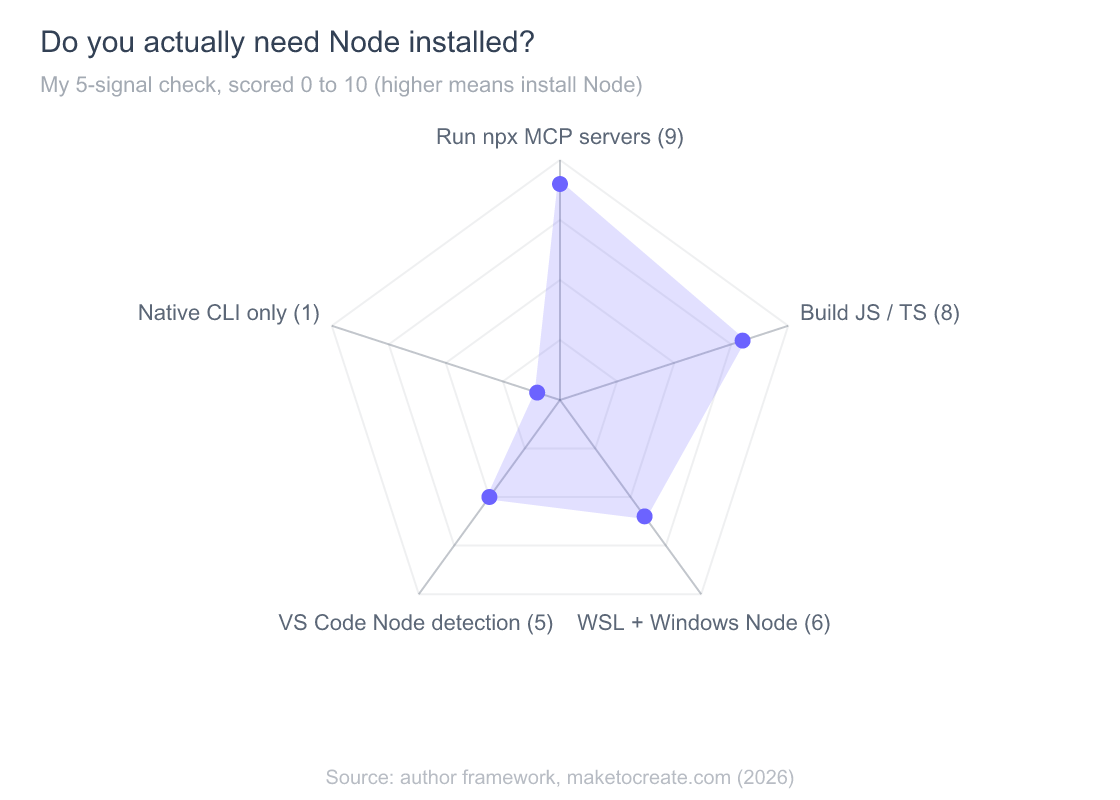
Claude Code doesn’t need Node. Your workflow probably does. This is the nuance that gets lost when people either over-install (“Node 18+ required!”) or under-install (“Claude Code needs nothing, delete Node”).
Three real reasons to keep Node on the machine:
- MCP servers. A lot of Model Context Protocol servers ship as npm packages and launch through
npx. If you wire up a filesystem, GitHub, or Postgres MCP server that runs vianpx, that command needs Node even though Claude Code itself doesn’t. Point Claude Code at those tools and you’re back to needing a working Node. - Your actual projects. If you write JavaScript or TypeScript, you already have Node, and Claude Code will happily run your
npm test,npm run build, andnpxscripts inside a session. No Node, no build tooling for it to drive. - Other global CLIs. Plenty of dev tools install through npm. If Claude Code is your only npm-installed tool, you can drop Node. If it’s one of ten, keep it.
So the decision isn’t “does Claude Code need Node,” it’s “does anything I ask Claude Code to do need Node.” I put the signals I actually weigh into a quick self-check below. Score yourself: if you land high, install Node 22 LTS; if you land low, the native installer alone is genuinely all you need.
The “requires Node.js version 18 or higher” error
This is the error that sends people down the rabbit hole: Error: Claude Code requires Node.js version 18 or higher to be installed. It shows up even when you have Node 22 installed and working, which is what makes it so maddening. I’ve had it fire in a terminal where node --version printed v22 a second earlier.
The message is almost always lying about the cause. It’s not that Node is missing or too old. It’s that the process throwing the error can’t see your Node. This happens most on the npm path and inside the VS Code extension. A version manager like nvm or asdf hasn’t been initialized in that process’s environment, so the Node you set up in your shell isn’t on the PATH the extension inherited (GitHub issue #8439, 2026). The Node is right there. The tool just isn’t looking in the right place.
I’m keeping this at the runtime level on purpose. This isn’t an error-code catalog, and the exact message text drifts between versions. If you’re chasing a specific exit code or a different Node-adjacent failure, I keep a fuller breakdown in the errors guide with every code, cause, and fix. For this one, there are two durable fixes:
- Switch to the native installer. It has no Node dependency, so the whole class of “can’t find Node” errors disappears. This is what I did, and I haven’t seen the message since.
- Make sure your version manager is loaded in the environment that runs Claude Code, whether that’s your shell rc file or the IDE’s launch environment. More on that next, because nvm is the usual culprit.
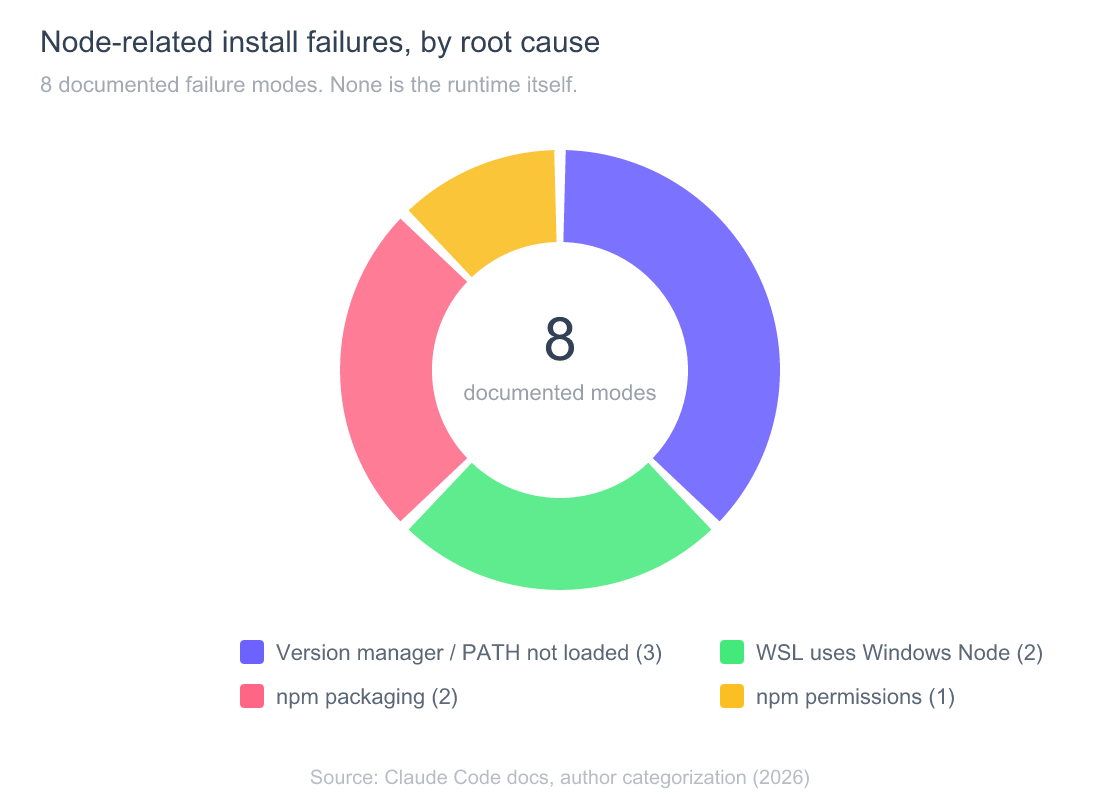
When I sort the Node-related install failures I’ve either hit or seen reported, they cluster in a way that tells the whole story. Almost none of them are about the Claude Code binary itself.
nvm conflicts with Claude Code (and how to fix them)
nvm is the single most common reason Claude Code and Node fall out with each other. The trap is simple: you install Claude Code globally under one Node version, then run nvm use to switch to a different version for another project. nvm points your PATH at the new version’s global folder, the old global claude isn’t there, and suddenly the command is gone. Nothing broke. The shim just moved.
On Windows Subsystem for Linux it gets one layer worse, and the docs are specific about it. WSL imports the Windows PATH by default, so if you have nvm installed in both Windows and WSL, switching Node versions inside WSL can break because the Windows nvm takes priority. The most common cause is that nvm simply isn’t loaded in your shell (Claude Code docs, 2026). A related symptom is exec: node: not found when you run claude, which means WSL is reaching for the Windows Node install. You can confirm it by running which node: a path starting with /mnt/c/ is a Windows binary leaking into Linux.
The fixes, in order of how much I trust them:
Load nvm in your shell rc. Half the “nvm conflict” reports are just nvm not being sourced. Add the loader to ~/.bashrc or ~/.zshrc:
export NVM_DIR="$HOME/.nvm"
[ -s "$NVM_DIR/nvm.sh" ] && \. "$NVM_DIR/nvm.sh"
[ -s "$NVM_DIR/bash_completion" ] && \. "$NVM_DIR/bash_completion"
Prepend your Linux Node path if Windows paths still win in WSL:
export PATH="$HOME/.nvm/versions/node/$(node -v)/bin:$PATH"
Or sidestep the whole thing with the native installer. This is the real answer. The native claude binary isn’t a Node program, so it doesn’t live in any nvm version folder and doesn’t care which Node you’ve switched to. I moved to the native install specifically because I was tired of nvm use deciding whether Claude Code existed. Since then, my Node version and my Claude Code install have nothing to do with each other, which is exactly how it should be. One caution from the docs worth repeating: don’t disable Windows PATH importing to force the issue, and don’t uninstall Node from Windows if you use it for Windows development. Fix the load order, don’t burn the setup down.
What about the VS Code extension and Node?
The VS Code extension deserves its own note, because it’s where the Node story gets most confusing. The extension doesn’t run the same claude you have in your terminal. It bundles a private copy of the CLI inside its own extension directory and uses that for its chat panel, and it does not add claude to your PATH (Claude Code docs, 2026). So if you installed only the extension and then open a terminal expecting claude to work, it won’t. There’s no ~/.local/bin/claude because the extension never put one there.
This also explains why the “requires Node.js version 18 or higher” error shows up inside the editor more than anywhere else. VS Code launches with whatever environment it inherited when it started, which frequently does not include your shell’s nvm or asdf initialization. Your terminal sees Node 22; the editor process sees no Node at all, because the version manager that puts Node on the PATH never ran in that process. Same machine, same Node install, two different views of it.
The runtime takeaway is simple. If you want claude in your terminal, run the standalone native install, and don’t assume the extension covered it. If the extension itself throws a Node error, the fix is to launch VS Code from a terminal where your version manager is already loaded, so the editor inherits a PATH that can actually find Node. That’s an environment problem, not a Node problem, which is the theme of this entire article.
npm vs the native installer: which should you pick?
For most people, the native installer. It’s what Anthropic recommends, it needs no Node, and it auto-updates in the background so you’re not running npm install -g ...@latest every couple of weeks. That’s the whole pitch, and it’s a good one.
The npm path is still fine if you already manage a pile of global npm tooling and you’re on Node 22 or later. You get the same native binary either way. Two rules if you go this route. First, don’t use sudo npm install -g @anthropic-ai/claude-code, which invites permission and security problems. Second, if the binary goes missing after install, check that optional dependencies aren’t disabled, because the native binary ships as a per-platform optional dependency (Claude Code docs, 2026).
If you’re migrating off an old npm install to escape Node headaches, the sequence is short:
# See every claude on your PATH (watch for duplicates)
which -a claude

# Remove the npm global install
npm uninstall -g @anthropic-ai/claude-code

# Install the native binary (macOS / Linux)
curl -fsSL https://claude.ai/install.sh | bash
Then open a new terminal and run claude --version to confirm the native one is answering. If you want the full platform-by-platform walkthrough, including the Windows and WSL specifics I’ve only touched on here, that all lives in the complete install and setup guide. This article is about the runtime; that one is about the steps.
Frequently asked questions
Does Claude Code need Node.js?
Not for the recommended native installer, which ships a native binary that doesn’t invoke Node at runtime. Only the npm install path needs Node, and even then it’s used at install time, not when claude runs (Claude Code docs, 2026).
What Node.js version does Claude Code require?
If you install through npm, Node 22 or later as of v2.1.198. Older Node versions trigger an EBADENGINE warning but usually still install and run. The native, Homebrew, WinGet, and Linux package-manager installs require no Node at all.
Why does Claude Code say it requires Node.js 18 when I have Node 22?
Because the process throwing the error can’t see your Node, not because your Node is too old. It’s typically the npm path or the VS Code extension running without your version manager loaded, so nvm’s Node isn’t on the PATH it inherited. Loading nvm in your shell fixes it; switching to the native installer removes the dependency entirely.
How do I fix nvm conflicts with Claude Code?
Make sure nvm is sourced in your ~/.bashrc or ~/.zshrc, and in WSL prepend your Linux Node path so the Windows Node install doesn’t take priority. The durable fix is the native installer, which isn’t a Node program and ignores your nvm state completely.
Should I install Claude Code with npm or the native installer?
The native installer for most people: no Node requirement and background auto-updates. Use npm only if you already manage global npm tools and run Node 22+, and never with sudo.
The short version
The Node.js story around Claude Code is mostly a leftover from when npm was the only way in. Today, the runtime question has a clean answer.
- The recommended native installer needs no Node. Full stop.
- The npm path needs Node 22+, but only at install time. The binary it installs is native.
- The “requires Node 18” error and nvm conflicts are PATH and version-manager problems, and the native installer makes them vanish.
- Keep Node 22 LTS anyway, because your MCP servers and your own projects want it, even if Claude Code doesn’t.
Get Claude Code installed the native way, keep Node for your real work, and stop letting nvm use decide whether your AI pair-programmer shows up. If you hit a specific error along the way, the troubleshooting guide has the rest.