I do almost everything in Claude Code, in a terminal, all day. So when I set out to get Cowork running on a Windows machine, I expected the boring part to be the download and the interesting part to be the tasks. It was the other way around.
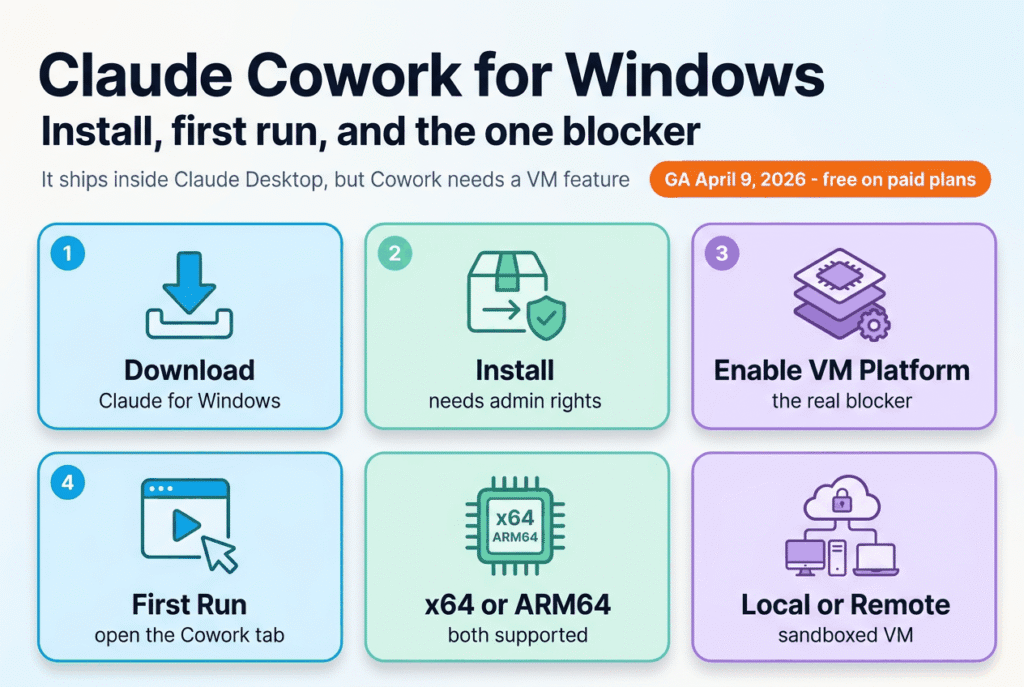
The download is nothing. Cowork isn’t even a separate app. The part that actually decides whether the Cowork tab lights up or stays dead is a Windows setting most setup posts don’t mention: Cowork runs its work inside a real virtual machine, and Windows won’t let it do that without admin rights and the Virtual Machine Platform feature turned on. Get those two things wrong and you’ll download, install, sign in, and still have no Cowork. Get them right and it just works.
Here’s the honest, verified path: where Cowork stands on Windows right now, how to install it, the virtualization gate nobody warns you about, and what your first run looks like.
Key Takeaways
- Claude Cowork is generally available on Windows as of April 9, 2026: “generally available today on all paid plans on macOS and Windows” (Anthropic, 2026). There is no “October 2024” release; that date is wrong.
- There’s no separate Cowork download. Cowork ships inside the Claude Desktop app. You get or update it at claude.com/download.
- The Cowork tab needs administrator privileges and the Virtual Machine Platform Windows feature. Without them, “Cowork on desktop will not be available” (Claude Help Center, 2026).
- Cowork now runs remotely by default on Anthropic’s servers, so a locked-down or low-spec Windows box can still use it even when it can’t run the local VM.
- Windows Home is genuinely contested. Anthropic documents no edition requirement, but Home users report a cluster of VM failures on Anthropic’s issue tracker, and the popular “Home lacks the
vmmsservice” explanation is contradicted by at least one Home report where that service was running. Try before you upgrade.- Cowork is free on every paid Claude plan (Pro, Max, Team, Enterprise). No separate purchase.
Is Claude Cowork available for Windows?
Yes, and it has been since April 9, 2026, when Anthropic announced Cowork was “generally available today on all paid plans on macOS and Windows” (Anthropic, 2026). Before that it ran as a research preview, launched January 12, 2026, Max-only with a waitlist for everyone else (TechCrunch, 2026). The month Windows specifically joined that preview is the one date I could not source to anything official, so I’m not going to state one the way some write-ups do. If a page tells you Cowork launched in “October 2024,” close the tab. That date predates the product and keeps showing up in low-quality write-ups.
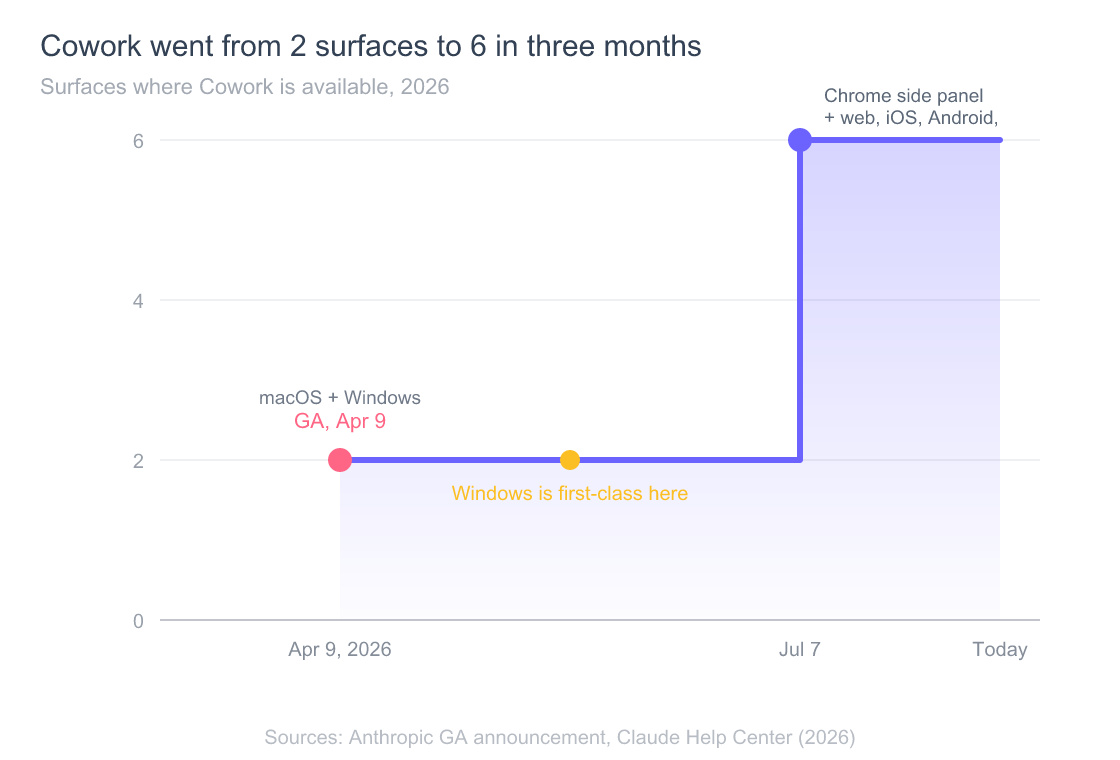
Cowork is Anthropic’s desktop agent for non-coding knowledge work. Think of it as Claude Code without the code: it reads, writes, edits, and organizes your files, runs multi-step tasks, and hands you finished work instead of a chat transcript. On the platform question specifically, the Help Center now lists six surfaces: Claude Desktop for macOS and Windows, the web at claude.ai, Claude Mobile for iOS and Android, and the Claude in Chrome side panel (Claude Help Center, 2026). Windows is a first-class, generally available target, not a beta afterthought.
The reason the timeline matters for Windows users is freshness. Cowork’s Windows story changed twice in 2026: general availability in April, then remote and scheduled cloud sessions in July. What you can do on a Windows machine today is genuinely different from what a March write-up describes.
For the bigger picture of what Cowork is and who it’s for, see the complete guide to Claude Cowork: what it is, what it does, platforms, and eligibility. This page stays narrow: getting it running on Windows.
How do you download Claude Cowork for Windows?
The Claude Cowork Windows download isn’t what you’d guess: there’s no “Cowork” installer at all. You download Claude Desktop, and Cowork is a tab inside it, so the Help Center’s instruction is blunt: “Cowork requires the latest version of Claude for Windows. Download or update at claude.com/download” (Claude Help Center, 2026). If you already run Claude Desktop for the Chat or Code tabs, you may only need to update it, not reinstall.
The desktop app carries three modes: Chat (general conversation, no file access), Cowork (the autonomous agent that works in a sandboxed virtual machine), and Code (Claude Code with a GUI) (Claude Code docs, 2026). That’s the whole reason there’s no standalone Cowork download: one app, three modes. Recent builds have started merging how you reach them, which I cover in the first-run section below.
Windows ships in two processor flavors, and Anthropic covers both. There are separate installers for x64 and ARM64 (Claude Help Center, 2026), so a Snapdragon or other Arm laptop is supported, not left out. If you’re not sure which one you have, check Settings, System, About, and read the “System type” line before you download.
Because I already live in this app for the Code tab, the download and sign-in are a known quantity. The Cowork-specific requirements are where a Windows install differs from a Mac one, and that’s the next section.
How do you install Claude Desktop on Windows?
At a high level: download the installer, run it, launch Claude from the Start menu, and sign in with your Anthropic account (Claude Code docs, 2026). That’s the same shape as any Windows desktop app. The one non-obvious requirement is administrator access, which Anthropic’s deployment doc makes a condition for Cowork itself, and it’s not optional if you want the tab to appear.
Here’s the rule that trips people up, quoted straight from Anthropic: “For individual installations with full feature support including Claude Cowork, administrator privileges are required.” Standard users without admin access can still install Claude, but “Cowork on desktop will not be available” (Claude Help Center, 2026). So on a managed work laptop where you’re not a local admin, you can install Claude and use Chat, and the Cowork tab will simply not be there. That’s expected behavior, not a bug.
For a single machine, the flow is the standard installer. For IT teams pushing Claude Desktop across a fleet, Anthropic documents MSIX packages and two PowerShell paths: a per-user install with Add-AppxPackage, and a machine-wide install with Add-AppxProvisionedPackage (Claude Help Center, 2026). If you’re doing an enterprise rollout, that’s the documented route, and the admin-rights and virtualization requirements below apply to every seat that needs Cowork.
One practical note on the restart at the end: use a normal Restart, not shut down and power back on. Anthropic warns that with Fast Startup enabled, “a shutdown cycle can leave the virtualization services uninitialized” (Claude Help Center, 2026). That single detail explains a chunk of the “I enabled it and it still doesn’t work” reports.
What’s the Windows-specific setting that blocks Cowork?
Virtualization. This is the part that makes a Windows install different from a Mac one, and it’s the single most common reason the Cowork tab is greyed out or missing. Cowork doesn’t run your tasks directly on Windows. It runs them inside an isolated Linux virtual machine, and Windows uses Hyper-V to create that VM (Claude Help Center, 2026). No virtualization layer, no VM, no local Cowork.
Concretely, Anthropic’s own words: “Shell commands and any code Claude writes execute inside a dedicated Linux VM, isolated from the host operating system by the platform’s hypervisor (Apple Virtualization.framework on macOS, Hyper-V on Windows)” (Claude Help Center, 2026). That isolation is the safety story, and it’s the reason an agent editing your files can’t wander off and wreck your OS. It also means your Windows machine has to be able to run that VM.
To enable it, the documented one-liner turns on the Virtual Machine Platform feature from an elevated PowerShell prompt:
Enable-WindowsOptionalFeature -Online -FeatureName VirtualMachinePlatform -All -NoRestart
The feature “takes effect after the machine restarts,” so a reboot is part of the deal (Claude Help Center, 2026). If you’ve ever set up WSL 2, this is the same underlying platform (Microsoft Learn, 2026).
There are two more gotchas worth knowing before you file a bug that isn’t one:
- Nested virtualization. If Windows is itself running inside a VM (a cloud VM, a VDI desktop) without nested virtualization enabled, Cowork can’t run there: “Virtual machines and VDI environments without nested virtualization aren’t supported, so Cowork can’t run on these hosts” (Claude Help Center, 2026). Plenty of “it won’t start” reports trace back to exactly this.
- A hypervisor fight. If you also run VMware or VirtualBox, they can grab the hypervisor and starve Hyper-V. Anthropic’s fix is to confirm the Windows hypervisor launches at boot: check
bcdeditforhypervisorlaunchtypeset toAuto, and if it isn’t, runbcdedit /set hypervisorlaunchtype autofrom an elevated prompt and restart (Claude Help Center, 2026).
On the hardware specs question, Anthropic is quiet in a way worth naming. The Windows deployment doc sets out admin rights, the Virtual Machine Platform feature, and the x64 versus ARM64 split, but it publishes no minimum Windows version, no minimum RAM, and no free-disk figure (Claude Help Center, 2026). Third-party guides fill that vacuum with confident numbers, and I’m not going to repeat figures nobody official has stated. The one defensible floor is the platform Cowork leans on: Virtual Machine Platform is the same optional feature WSL 2 requires, and Microsoft puts that at Windows 10 version 1903 build 18362.1049 for x64, version 2004 build 19041 for ARM64, or any Windows 11 (Microsoft Learn, 2026). Below that line, the feature isn’t there to enable.
If your Cowork tab is missing or throwing errors after all this, that’s a troubleshooting problem with its own playbook, not a setup question, and it belongs in the Claude Cowork troubleshooting guide, covering every Cowork error state including install failures.
Does Claude Cowork work on Windows Home?
This is the most contested question in Windows Cowork setup, and the honest answer is that it’s unresolved. That’s itself the useful finding, because most pages covering this pick a side and state it as fact.
Start with what’s documented. Anthropic’s deployment article never mentions Windows editions at all. It requires administrator privileges and the Virtual Machine Platform feature, and says nothing about Home, Pro, or Enterprise (Claude Help Center, 2026). On paper, Home qualifies. Microsoft is explicit that Virtual Machine Platform is “a subset of Hyper-V” that’s “available on all Desktop SKUs,” and that WSL 2 runs on Windows 10 and 11 Home (Microsoft Learn, 2026).
Now the counter-evidence, which is real. A documentation request on Anthropic’s own issue tracker argues Cowork needs more than Virtual Machine Platform: it needs the full Hyper-V role and its Virtual Machine Management service (vmms), which ships only on Pro, Enterprise, and Education. Home carries Virtual Machine Platform and Windows Hypervisor Platform, which that report calls “insufficient for Cowork’s VM-based sandbox” (anthropics/claude-code #27906, 2026). It gathers a cluster of Home-specific failures as supporting evidence.
The cluster doesn’t hold together as cleanly as that, though. One linked report runs Windows 11 Home 25H2 with vmms confirmed running, still gets told virtualization isn’t enabled, and describes it as a regression that appeared after a Claude Desktop update (anthropics/claude-code #27384, 2026). If vmms is present on that Home machine, “Home lacks vmms” can’t be the whole explanation. Another has Cowork working on Windows 11 Home on a Personal plan and failing on a Team plan on the same edition (anthropics/claude-code #26873, 2026), which points at account provisioning rather than the OS edition. All three issues are closed with no documented Anthropic response on the edition question.
What Anthropic has acknowledged, obliquely, is that the category exists. A desktop changelog entry dated August 13, 2026 fixes a sidebar bug specifically on “Windows machines that can’t run local Cowork” (Anthropic changelog, 2026). That isn’t an edition ruling, but it does confirm Anthropic actively ships for Windows boxes where the local VM never comes up, which is the situation Home users keep describing.
So here’s where I land. Windows Home users hit a genuine, repeatable cluster of Cowork VM failures. The popular explanation, that Home structurally cannot run it, is plausible but contradicted by at least one report from a Home machine where the supposedly missing service was running. Anthropic has published no edition requirement either way.
Practically: if you’re on Windows Home, don’t buy a Pro upgrade on the strength of blog posts, this one included. Enable Virtual Machine Platform, restart properly, and try it. If the local VM won’t come up, you’re not stuck, because remote sessions skip the local VM entirely. That’s the next section, and it’s why a Home machine is rarely a dead end.
What does the first run of Cowork on Windows look like?
Once Cowork is installed and the virtualization gate is clear, starting a task is genuinely simple. The documented flow is three steps: open Claude, select Cowork in the message box, and describe the task you want done (Claude Help Center, 2026). Where exactly you click depends on your build, and this trips people up. The Claude Code docs still describe three tabs across the top of the app, Chat, Cowork, and Code (Claude Code docs, 2026), but in v1.26832.0 (2026-08-06) Anthropic “added the merged Chat and Cowork home as the default,” where one composer starts either a chat or a task and the sidebar shows Home alongside Code (Anthropic changelog, 2026). So on a current build, don’t hunt the top nav for a tab labelled Cowork. Start the task from the composer. Either way you describe an outcome, step away, and come back to finished work.
One Windows detail matters for local work: if your task touches local files, the browser, or your computer, the desktop app has to stay open and connected. The Help Center is explicit that these local capabilities need the app running even when the session itself runs remotely (Claude Help Center, 2026). Close the app mid-task and you cut off its hands.
Give it something small and reversible on your first run. A good starter task is “read the PDFs in this folder and give me a one-page summary of each,” or “rename these screenshots by date and sort them into subfolders.” You’ll see Cowork propose an approach, then work through it. For a fuller set of real workflows, including the scheduled and unattended tasks that landed in July 2026, see how to use Claude Cowork: getting started and real workflows, including scheduled tasks.
According to Anthropic’s Cowork documentation, on-device sessions run their code in an isolated Linux VM on your own machine, while remote sessions run in a temporary sandbox on Anthropic’s infrastructure that’s destroyed when the session ends (Claude Help Center, 2026). Which one you get changes what your first run can reach, and that’s worth understanding before you pick a task.
Local or remote: which Cowork session runs on your Windows machine?
Here’s the detail that quietly rescues a lot of Windows setups: Cowork runs remotely by default. The agent loop and code execution operate in isolated, temporary sandboxes on Anthropic-managed servers, with each session getting its own sandbox that’s destroyed when it ends (Claude Help Center, 2026). Remote and scheduled cloud sessions arrived on July 7, 2026 (Anthropic, 2026), and they changed the Windows story.
Why does that matter? Because remote-by-default means a Windows machine that can’t run the local VM can still use Cowork. If you’re on a locked-down corporate laptop, an older PC, or a host where virtualization is off the table, the remote path doesn’t need your machine to spin up Hyper-V at all. The tradeoff is real: remote sessions run outside your network and, by default, can’t reach private or internal addresses (Claude Help Center, 2026). Local sessions keep execution on your device, inside that Hyper-V-isolated Linux VM, which is what you want when the work has to touch things only your machine can see.
On paper, the local-versus-remote choice is a bigger decision than any install click, and it’s the one to think through before your first task. Here’s how the two stack up on the five constraints that matter most on Windows, scored from the architecture docs:
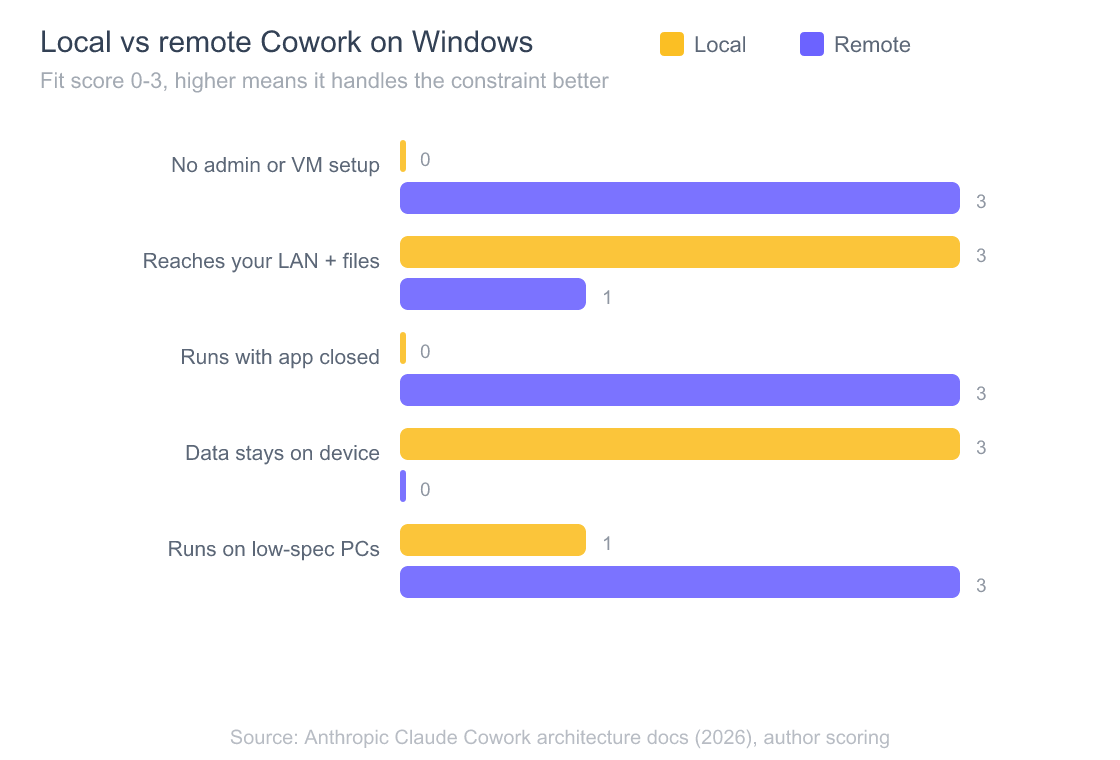
The pattern is complementary, not competitive. Remote wins on convenience and reach: no local setup, keeps going when the app is closed, runs on a potato PC. Local wins on locality: it can touch your LAN and your files in place, and it keeps execution on your own hardware. My take for a first Windows install is to start remote, because it sidesteps the whole virtualization gate, and reach for local only when a task genuinely needs on-machine access. The permission and safety implications of an agent touching your files are worth a proper read on their own, which is a different topic from setup.
Frequently Asked Questions
Is Claude Cowork free on Windows?
Cowork itself costs nothing extra. It’s included on every paid Claude plan: Pro, Max, Team, and Enterprise (Claude Help Center, 2026). There’s no separate Windows license or add-on. Because Cowork tasks burn far more tokens than chat, the plan tier you’re on affects how much you can run, not whether Windows access costs more. For the full plan breakdown, see the Claude Cowork pricing guide: cost, the free-on-paid-plans fact, and which tier fits.
Is there a separate Cowork app to download for Windows?
No. Cowork is a mode inside the Claude Desktop app, alongside Chat and Code (Claude Code docs, 2026). You install or update Claude for Windows from claude.com/download, and Cowork appears inside it, either as its own tab or, on recent builds, through the merged Home composer. Searching for a standalone “Cowork.exe” will send you in circles, because one doesn’t exist.
What Windows requirements unlock the Cowork tab?
The two most common causes are documented requirements, not bugs: you’re not a local administrator, or the Virtual Machine Platform feature is off. Anthropic states that without admin privileges “Cowork on desktop will not be available,” and Cowork needs virtualization to run its Linux VM (Claude Help Center, 2026). Fix those two first, in that order, before you go looking for a deeper cause.
Does Claude Cowork run on Windows ARM (Snapdragon) laptops?
Yes. Anthropic ships a separate ARM64 installer alongside the x64 one (Claude Help Center, 2026), so Arm-based Windows laptops are supported. Check your architecture under Settings, System, About, then grab the matching build. Anthropic documents no ARM64-specific exceptions to the admin and Virtual Machine Platform requirements.
Can I use Cowork on Windows without enabling virtualization?
Yes, through remote sessions. Because Cowork runs remotely by default on Anthropic’s servers (Claude Help Center, 2026), a machine that can’t run the local Hyper-V VM can still use Cowork for tasks that don’t need on-device or LAN access. Local execution is what requires the Virtual Machine Platform feature; remote execution doesn’t.
The honest bottom line for Windows
Getting Claude Cowork onto Windows is easy to overthink. The download is just the Claude Desktop app from claude.com/download, in an x64 or ARM64 build. The one thing that actually decides whether Cowork works is virtualization: administrator rights plus the Virtual Machine Platform feature for local sessions, or the remote default for everything else. Nail that, and your first task is four clicks away.
If you take one thing from this: don’t fight the virtualization gate on a locked-down machine. Start with remote sessions, which skip it entirely, and only go local when a task truly needs your files in place. From here, the natural next steps are understanding what Cowork can actually do, over on how to use Claude Cowork: real workflows and scheduled tasks, and keeping the Claude Cowork troubleshooting guide bookmarked for the day the Cowork tab misbehaves.
Want the whole map before you commit? The complete guide to Claude Cowork covers what it is, who gets it, and how it fits next to Claude Code.